How-to
How to Set the Best Privacy Settings for LinkedIn in 2026
9 min read

Last Updated: October 24, 2026
Quick Summary
The best privacy settings for LinkedIn start with your public profile: limit what logged-out visitors see, then restrict connections visibility to your connections only. Turn on private mode when researching profiles, and use the private Open to Work setting if your employer might see your badge.
- Reach settings via the Me icon, then Settings & Privacy, and work through the Privacy tab.
- Switch off photo, contact info, and connections on your public profile if you do not need them public.
- Change connections visibility from Anyone to Your connections to limit who sees your network.
- Private mode hides your profile views but also stops you seeing who viewed your profile.
- Choose the private Open to Work setting if your current employer might see your profile.
Table of Contents
- Why LinkedIn Privacy Settings Matter in 2026
- How to Access Your LinkedIn Privacy Settings
- LinkedIn Profile Visibility Settings: What to Lock Down First
- Hiding Your Profile from Search Engines
- Limiting Who Can See Your Connections
- Using LinkedIn Private Mode for Profile Viewing
- How to Control Who Sees LinkedIn Posts and Activity
- LinkedIn Open to Work Privacy Settings Explained
- Common Mistakes to Avoid When Tightening LinkedIn Privacy
- Auditing and Reducing Your Broader Online Exposure
- Frequently Asked Questions
Why LinkedIn Privacy Settings Matter in 2026
Your LinkedIn profile is often the first thing a recruiter, a client, or a stranger sees when they search your name. That visibility cuts both ways. The best privacy settings for LinkedIn in 2026 are the ones that keep your profile useful to the people you want to reach while keeping your contact details, connections, and job search quiet. At cybersweep analytics, we help people reduce their online exposure, and LinkedIn is one of the first places we tell them to check.
Here is the part most guides skip: your LinkedIn settings control what other members see, not what data brokers already collected. Those are separate problems with separate fixes.
A LinkedIn privacy setting is a control inside your account that decides who can view your profile details, connections, activity, and job-seeking status (Manage your account and privacy settings). LinkedIn groups these controls under Settings & Privacy, and the LinkedIn Help Center walks through how to reach that menu. Below, we cover exactly which settings to change, in what order, and the mistakes that undo your work.
How to Access Your LinkedIn Privacy Settings
Reaching the settings takes about ten seconds. Click the Me icon at the top of your LinkedIn homepage, then choose Settings & Privacy from the dropdown. The Privacy tab on the left holds every visibility control we cover in this guide.
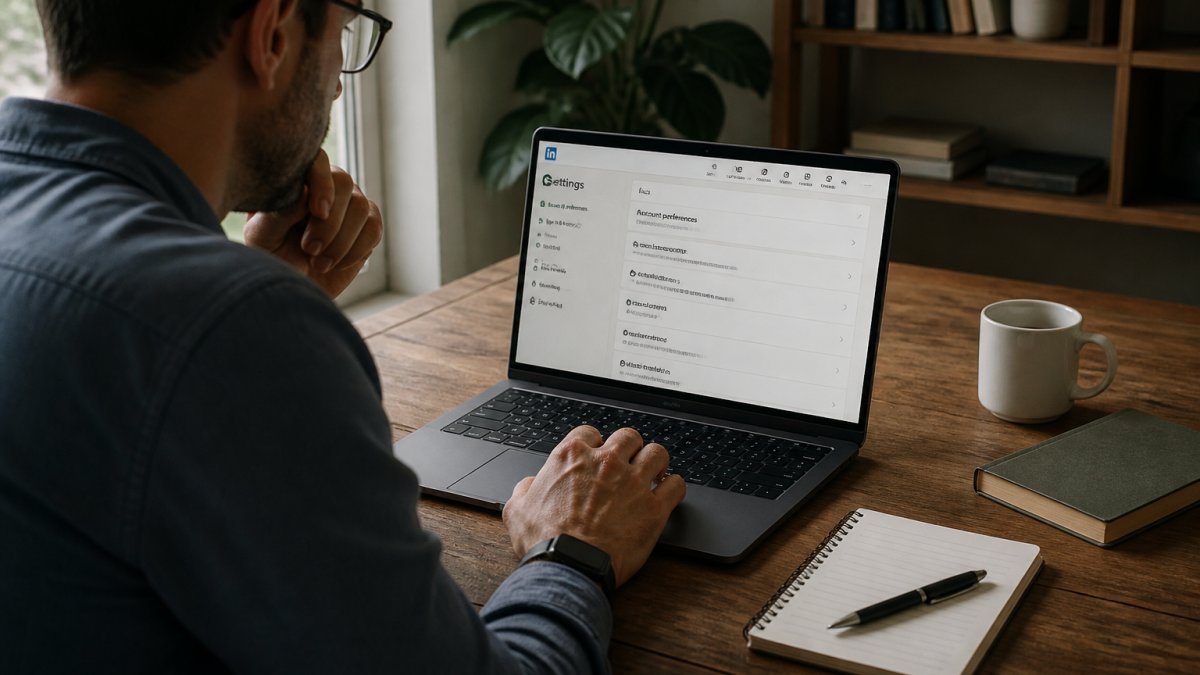
From there, you will see sections for how others see you, how your information is used, and how to download your data. Work through them in that order. Most people jump straight to profile visibility and ignore the data-use section entirely.
Watch out: settings change over time. LinkedIn has redesigned this menu more than once, so if a label looks different from what a guide describes, follow the menu structure rather than the exact wording.
LinkedIn Profile Visibility Settings: What to Lock Down First
Start with profile visibility. These are the LinkedIn profile visibility settings that decide how much of your page a logged-out visitor or a stranger can see, and they matter more than any other control on the list.
Two changes deliver most of the benefit:
- Public profile visibility: Limit what appears on your public profile, which anyone can view without logging in. Switch off photo, contact info, and connections if you do not need them public.
- Profile viewing options: Choose whether people can see that you viewed their profile, or browse anonymously.
A common mistake is leaving the public profile wide open while tightening everything else. The public version is the one search engines index, so it deserves your attention first.
Hiding Your Profile from Search Engines
You can tell LinkedIn to keep your public profile out of search engine results. Open Settings & Privacy, go to Visibility, and find the option for public profile visibility. Set it so your profile does not appear in search results.
This does not hide your profile from LinkedIn members. It only affects outside search engines. If you want to stay findable by recruiters but invisible to casual Google searches, this is the setting to use.
One caveat: this controls LinkedIn's own public profile page. It does not remove your name from other websites that copied your details.
Limiting Who Can See Your Connections
Your connections list reveals a lot. It shows who you know, which companies you are close to, and sometimes your job-search network. LinkedIn lets you restrict this to your connections only.
Go to Settings & Privacy, then Visibility, and open the connections visibility setting. Change it from "Anyone" to "Your connections." A guide from MagicPost walks through this exact path for the connections list.
Why bother? Competitors, salespeople, and scrapers use connection lists to map networks. Closing this off costs you nothing and cuts off an easy source of information.
Using LinkedIn Private Mode for Profile Viewing
LinkedIn private mode profile viewing lets you browse profiles without the other person knowing. Turn it on under Settings & Privacy, then Visibility, then Profile viewing options. Select Private mode.
The trade-off is real. In private mode, you also lose the ability to see who viewed your profile. LinkedIn offers a middle option that shows only your job title and industry, which keeps some context without revealing your name.
Our take: use private mode when you are researching competitors or checking out a company before an interview. Switch back to your name when you want to be visible. There is no permanent commitment.
How to Control Who Sees LinkedIn Posts and Activity
Control who sees LinkedIn posts by adjusting the audience on each post and reviewing your activity broadcast settings. You can set a post to Anyone, Connections, or Group before you publish, and you can change the audience afterward on your own posts.
The bigger leak is the automatic stuff. LinkedIn shares profile updates, job changes, and comments in your network's feed by default. Those broadcasts tell everyone what you are doing, sometimes before you want them to know.
Managing Activity Broadcast and Profile Updates
Turn off activity broadcasts under Settings & Privacy, then Visibility. Look for the setting that shares profile updates with your network and switch it off. This stops LinkedIn from announcing job changes, new skills, and work anniversaries without your say-so.
Also review the setting that shares your activity with your connections. If you comment on a post, that comment can surface in your network's feed. Some people want that visibility. Others, especially anyone quietly job hunting, do not.
LinkedIn Open to Work Privacy Settings Explained
The Open to Work badge tells recruiters you are looking. It comes in two versions: a public badge on your photo frame that anyone can see, and a private setting visible only to recruiters using LinkedIn's hiring tools.
Choose the private option if your current employer might see your profile. The public badge is fine if you are unemployed or freelancing and want maximum reach.
To change it, open your profile, click Open to near your photo, and select Finding a new job. Then choose who sees it. You can remove the badge at any time.
The badge comes in two versions, and the right one depends on who you want to see it.
| Option | Who can see it | Best for |
|---|---|---|
| Public badge on photo frame | Anyone | Unemployed or freelancing, maximum reach |
| Private setting | Only recruiters using LinkedIn hiring tools | Anyone whose current employer might see |
Common Mistakes to Avoid When Tightening LinkedIn Privacy
The biggest mistake is treating LinkedIn settings as a one-time job. Change one thing, then forget it, and a future update quietly resets your preference.
Other mistakes we see often:
- Leaving the public profile open while locking everything else. Search engines still index it.
- Turning on private mode permanently and losing the recruiter signals you actually want.
- Ignoring the data-use section. It controls how LinkedIn uses your information, and most people never open it.
- Assuming settings cover other sites. They do not. Your LinkedIn controls stop at LinkedIn's door.
One more: do not tighten your profile so much that recruiters cannot tell who you are. A profile with no photo, no headline, and no connections reads as fake, and it will get skipped.
Auditing and Reducing Your Broader Online Exposure
LinkedIn is one source of your personal data. Data brokers, people-search sites, and old accounts hold the rest, and they often republish what you thought was private. Tightening LinkedIn helps, but it is one lock on a house with several doors.
Here is a simple audit you can run this week:
- Search your full name in quotes on Google and Bing, and note every site that shows your address, phone, or relatives
- Check each people-search site you find and note whether it offers an opt-out
- Review your LinkedIn public profile and confirm it shows only what you intend
- List old accounts you no longer use and close the ones you can
- Repeat the search in 30 days, because brokers re-list data
That last point matters. Opting out of a data broker is a request, not a guarantee. Many sites re-add records later, so exposure cleanup is ongoing work rather than a one-time task.
At cybersweep analytics, we help customers identify where their personal information appears online and work to remove eligible records from data broker and people-search sites. Results vary by source and by individual, and some records, including official public records and lawful news content, cannot be removed.
If you want help with the part that goes beyond LinkedIn, our team can take the broker research off your hands. Get started with cybersweep analytics and take a clearer look at where your personal information lives online.
Frequently Asked Questions
How do I make my LinkedIn profile private?
Open Settings & Privacy from the Me menu on your LinkedIn homepage, then go to the Visibility section. From there you can turn off public profile visibility so your page stops appearing in search engine results, restrict who can see your connections, and limit profile visibility to logged-in members. LinkedIn does not offer a single full-private toggle, so you will need to adjust each visibility control individually to match how much exposure you want.
Can people see when I view their LinkedIn profile?
Yes, unless you turn on private mode. By default, LinkedIn shows members that you viewed their profile along with your name and headline. Switching to private mode hides your identity from the people whose profiles you visit, though you will also lose the ability to see who has viewed yours. You can also choose a semi-private option that shows only your industry and job title rather than your full name.
How do I hide my LinkedIn profile from search engines?
Go to Settings & Privacy, open the Visibility tab, and edit your public profile settings. Turning off the public profile option means your LinkedIn page will no longer appear in Google, Bing, or other search engine results. Keep in mind that search engines may take time to drop cached pages, and the change only affects your LinkedIn profile, not other sites that may have copied your information.
What are the best LinkedIn privacy settings for job seekers using Open to Work?
The Open to Work feature lets you share that you are looking for work either with all LinkedIn members or only with recruiters using LinkedIn Recruiter. If your current employer does not know you are searching, choose the recruiters-only option and confirm the setting from your profile photo frame menu. Also review who can see your activity and connections, since recruiters often cross-reference those signals when evaluating candidates.