How-to
Is My Data Safe Online? A 2026 Guide
10 min read

Table of Contents
- Is My Data Safe Online? The Reality
- How to Check if Your Data Has Been Leaked
- How to Check Leaked Passwords and Verify Compromise
- Essential Steps to Protect Your Data Online
- What to Do After a Data Breach
- How to Remove Personal Information from the Internet
- Ongoing Monitoring and Device Security
- Frequently Asked Questions
Last Updated: October 20, 2026
Is My Data Safe Online? The Reality
The short answer is no, not completely. Data brokers collect your information, websites store it, and breaches expose it.
At cybersweep analytics, we help people identify where their information lives online and work to remove it from public sources.
You're not helpless, though. You can take concrete steps to reduce your exposure and verify whether your information has been compromised.
How to Check if Your Data Has Been Leaked
Finding out whether your personal information has been exposed in a data breach is the first step.
Check these resources:
- Have I Been Pwned (haveibeenpwned.com), search your email to see if it appears in documented breaches
- Firefox Monitor, automatically alerts you if your email shows up in future breaches
- Google Account, check your Google security dashboard for compromised passwords
- Your bank or credit card issuer, they often notify you of suspicious activity
Your results show which breaches exposed your data and what was stolen (email, password, phone number, address), telling you which accounts need immediate attention.
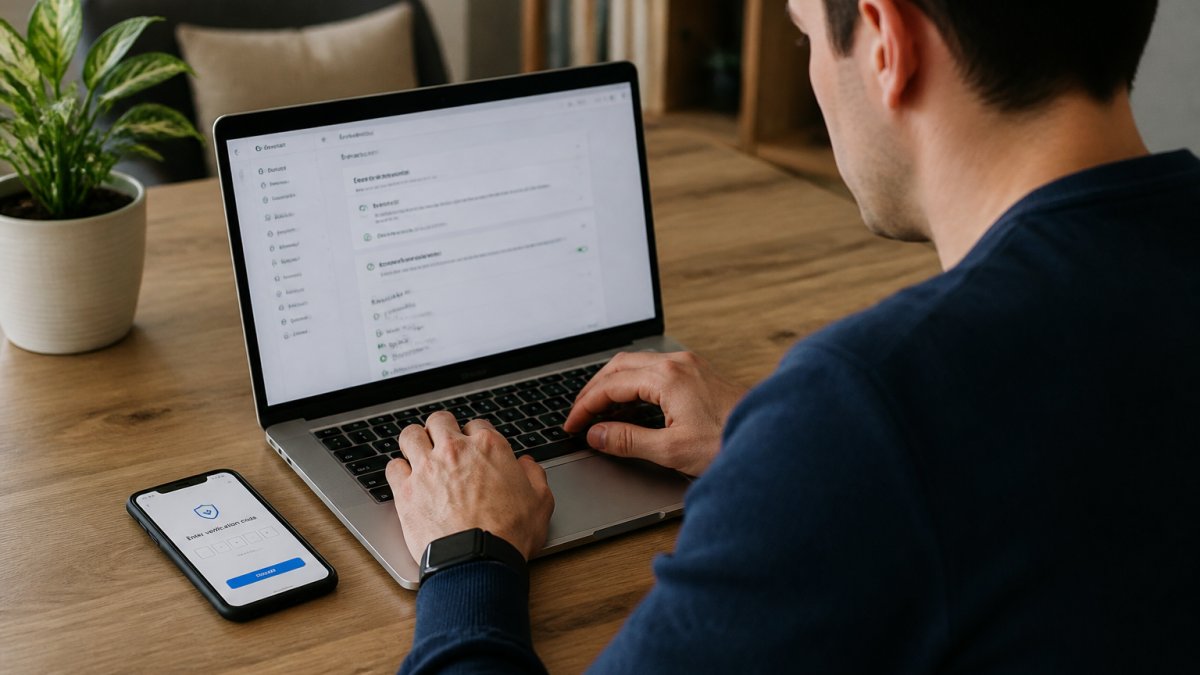
How to Check Leaked Passwords and Verify Compromise
If a password appears in a breach database, treat it as compromised. Attackers reuse leaked credentials across other sites, credential stuffing, so one exposed password can unlock accounts you never connected to the breach.
Check the password itself, not just the email. Have I Been Pwned has a separate password search page. If your password appears, change it everywhere it's used and stop reusing it.
Warning signs an account or device is compromised
Most account takeovers leave traces. Treat any one of these as a reason to act:
- Login alerts from a location, device, or time you do not recognize
- Password reset emails you did not request
- Two-factor authentication prompts you did not trigger (a sign someone has your password and is trying to complete the login)
- Recovery email or phone number changed without your action
Reliable checks to run
- Review active sessions. Most major services (Google, Microsoft, Apple, Meta) show a list of devices and sessions signed into your account. Sign out of anything you do not recognize, then change the password.
- Check recovery settings. Confirm the recovery email and phone number on important accounts are yours. Attackers change these first so you cannot reset your own password.
- Inspect email forwarding and filters. Hidden forwarding rules are a common way attackers keep reading your mail after you change your password.
- Review connected apps. Third-party apps with account access can persist after a password change. Revoke anything unfamiliar.
- Check your browser for unknown extensions and remove anything you did not install.
- Look at recent account activity in banking and credit card apps for charges or logins you cannot explain.
What to do next
Change the password on the affected account, then on any account that shared it. Enable two-factor authentication, preferably with an authenticator app or hardware key rather than SMS.
Many breaches surface months or years later, so periodic checks catch problems before stolen credentials are used. Set a recurring reminder to review active sessions and recovery settings on your most important accounts.
Essential Steps to Protect Your Data Online
Protecting your data online requires a layered approach. No single step is perfect, but combined they reduce your risk.
Strong Passwords and Password Managers
A strong password is long, random, and unique to each account.
Create strong passwords that are:
- At least 16 characters long (longer is better)
- Random combinations of uppercase, lowercase, numbers, and symbols
- Completely unique to each account
- Not based on personal information (birthdate, names, addresses)
Remembering dozens of unique passwords is impossible, which is where password managers come in. Tools like Bitwarden, 1Password, and LastPass store encrypted passwords so you only remember one master password.
A password manager also auto-fills login forms, reducing the risk of phishing attacks where fake websites trick you into entering credentials.
Two-Factor Authentication and Multi-Factor Protection
Two-factor authentication (2FA) adds a second verification step beyond your password, so a stolen password alone can't access your account.
Common 2FA methods:
- Authenticator apps (Google Authenticator, Microsoft Authenticator, Authy)
- SMS text messages (less secure but better than nothing)
- Backup codes (save these somewhere safe)
- Hardware security keys (most secure option)
Enable 2FA everywhere it's offered, especially email, banking, and social media. Authenticator apps beat SMS because attackers can intercept texts through SIM swapping.
Multi-factor authentication (MFA) extends this concept by requiring three or more verification methods. If your bank offers MFA, use it.
Recognizing Phishing and Social Engineering
Phishing emails trick you into revealing passwords or clicking malicious links by posing as banks, payment services, or social platforms.
Spot phishing attempts:
- Sender email doesn't match the company domain (support@paypa1.com instead of paypal.com)
- Generic greetings ("Dear Customer" instead of your name)
- Urgent language ("Verify your account immediately" or "Unusual activity detected")
- Suspicious links (hover over them to see the real URL)
When in doubt, don't click. Type the company's URL yourself, log in, and check for notifications there.
Social engineering uses psychology to manipulate you into divulging information, someone may call claiming to be your bank or IT support. Hang up and call the company directly using a number from its official website.
What to Do After a Data Breach
If your data was exposed in a breach, act quickly but methodically.
Immediate steps:
- Change your password for that account immediately
- Change passwords for any other accounts using the same password
- Enable or strengthen two-factor authentication
- Monitor your credit reports for suspicious activity
Within the next week:
- Place a fraud alert with the major credit bureaus (Equifax, Experian, TransUnion) (Credit Freezes and Fraud Alerts)
- Review your credit reports at annualcreditreport.com for inaccuracies
- Consider a credit freeze if your Social Security number was exposed
- Change security questions and recovery information on important accounts
Ongoing:
- Monitor your credit reports regularly
- Set up account alerts on banking and credit accounts
- Use credit monitoring services to catch suspicious activity
- Check your email forwarding settings to ensure attackers haven't redirected your mail
Recovery takes time. Stay vigilant for months, as attackers sometimes wait before using stolen information.
How to Remove Personal Information from the Internet
Removing your information is ongoing, not a one-time fix, data brokers keep collecting and sites republish old data. The practical approach is a prioritized audit: find what's exposed, decide what matters, and work from highest risk to lowest.
Step 1: Map your exposure
Start by searching for yourself the way a stranger would.
- Search your full name in quotes, plus your city and state, on Google and Bing
- Search your name plus "email" and your name plus "phone"
- Search your email address in quotes
- Check people-search and data broker sites directly for your name
Keep a simple list of every result that shows personal details: home address, phone number, email, relatives, employer, or photos.
Step 2: Rank what you found
Not every listing carries the same risk. Prioritize in this order:
- Direct identifiers, full home address, phone number, and email tied together on one page
- Financial and identity details, anything exposing account numbers, your Social Security number, or date of birth
- Family and relationship data, relatives' names and addresses that could be used for impersonation
- Employment and routine, employer, schedule, or location patterns
- Low-sensitivity listings, outdated profiles with no contact details
Step 3: Remove from the source first
Work from the original source outward.
- Data brokers and people-search sites: each has its own opt-out process. Some accept an online form, some require email verification, and some ask for identity confirmation. Follow each site's stated process and keep records of what you submitted.
- Social media: tighten privacy settings, remove public phone numbers and addresses, and delete accounts you no longer use.
- Old accounts and forums: delete or anonymize profiles you have abandoned.
- Your own websites and profiles: remove personal details you control directly.
Step 4: Request de-indexing where appropriate
After a source page is removed or updated, search engines offer removal request tools for pages that no longer exist or that contain certain personal information. These requests are reviewed by the search engine, not granted automatically, and outcomes vary.
Step 5: Know what usually cannot be removed
Some information is legally maintained and generally stays available:
- Government, court, property, licensing, and regulatory records
- Legitimate news articles and lawful commentary
- Publicly filed business registrations
You can sometimes request removal from a third-party site that republishes these records, but that does not change the underlying official record.
Step 6: Recheck on a schedule
Data brokers reacquire and republish information, so listings can reappear after removal. Recheck your name and email periodically, and resubmit opt-outs as needed. Treat this as maintenance rather than a finished task.
Doing this manually across many sites is time-consuming because each has its own process. Services like cybersweep analytics work to request removal of eligible personal information from multiple sources on your behalf, which can reduce the manual effort.
Ongoing Monitoring and Device Security
Protecting your data isn't a one-time project. Threats evolve, new breaches happen, and your digital footprint grows constantly.
Keep your devices secure:
- Update your operating system and software regularly (these patches fix security vulnerabilities)
- Use antivirus or anti-malware software
- Enable your device's built-in firewall
- Don't use public Wi-Fi for sensitive activities like banking (use a VPN if you must)
- Lock your device with a strong password or biometric authentication
Monitor your accounts regularly:
- Check your bank and credit card statements monthly
- Review your credit reports at least annually
- Set up alerts for unusual account activity
- Monitor your email for unexpected password reset notifications
- Periodically review which apps have access to your accounts
Stay informed:
- Subscribe to breach notification services
- Follow security news from reputable sources
- Update your passwords when services you use experience breaches
- Adjust your privacy settings when platforms change their policies
Online privacy keeps shifting, what's secure today may be vulnerable tomorrow. Regular monitoring and updates keep your exposure manageable.
Protecting your data online takes ongoing effort but isn't overwhelming.
If you've already experienced a breach or have significant information scattered across data brokers, cybersweep analytics can help.
Frequently Asked Questions
How can I check if my personal information has been exposed in a data breach?
Search your email address on breach notification sites like Have I Been Pwned to see if your data appears in known breaches. These services scan public records of compromised databases and alert you if your email is found. You can also check directly with companies you do business with if they've experienced a breach. If your information appears in a breach notification, change your password immediately and enable two-factor authentication on that account.
What should I do if my email or password appears in a data breach?
First, change your password on the affected account immediately using a strong, unique password. Check if the same password was used on other accounts and update those as well. Enable two-factor authentication if the service offers it. Monitor your financial accounts and credit reports for suspicious activity. Consider placing a fraud alert with the credit bureaus if sensitive financial information was exposed. Watch for phishing emails targeting your compromised email address.
How can I reduce the amount of personal information about me online?
Start by adjusting privacy settings on social media accounts to limit what's publicly visible. Opt out of data broker sites that collect and sell personal information. Review what information Google has collected about you through your account settings. Remove old social media profiles, forum accounts, and outdated online listings you no longer use. Be selective about what personal details you share when signing up for services. Request removal of your information from people-search websites and public records aggregators.
What's the difference between my data being safe and my identity being protected?
Data safety focuses on whether your personal information is exposed online or vulnerable to hackers. Identity protection involves monitoring for misuse of that information and responding if someone attempts fraud or theft using your identity. You can reduce your online exposure significantly, but complete protection from all risks isn't possible. Combining data removal efforts with account security practices, strong passwords, and monitoring creates a layered defense against both exposure and identity misuse.