Blog
Privacy Tools for Banking Users: A 2026 Guide
Updated October 21, 2026 10 min read
Table of Contents
- Why Privacy Tools Matter for Banking Users
- How to Check Leaked Passwords and Protect Your Banking Credentials
- Password Manager for Banking: Secure Storage and Access
- Multi-Factor Authentication for Bank Accounts
- Bank Account Security Alerts and Monitoring
- Encryption and Secure Data Transmission for Online Banking
- Access Controls, Permissions, and Risk Management
- Reducing Your Exposure: Data Cleanup and Privacy Protection
- Frequently Asked Questions
Last Updated: October 12, 2026
Why Privacy Tools Matter for Banking Users
Your banking information is a target for hackers, data brokers, and scammers.
Your bank protects its own systems, but you're responsible for protecting your access to them. That's where privacy tools for banking users come in.
These tools do three jobs: create and store strong passwords, add extra account protection, and watch for signs your information has leaked or been misused.
Privacy tools for banking users address weak passwords, reused passwords, and the lack of alerts when something goes wrong.
When your banking password is compromised, criminals can drain accounts, apply for loans in your name, or sell your data. Recovery can take months.
How to Check Leaked Passwords and Protect Your Banking Credentials
Using password-breach checkers
A password-breach checker scans leaked databases to tell you if your passwords appear in known breaches.
You enter your email or password, and the tool compares it against leaked records. A match means that password has been compromised.
The best checkers use "k-anonymity," checking only a portion of your password so they never see the full thing.
Steps to check your banking passwords:
- Visit a reputable password-breach checker
- Enter your email address or the password you use for banking
- Review the results immediately
- If your password appears in a breach, move to the next step
What to do if your banking password appears in a breach
Finding your password in a breach is a wake-up call. Act fast.
First, change your banking password immediately. Use a new one you've never used before, 16+ characters mixing uppercase, lowercase, numbers, and symbols.
Next, change any other account using that same password. Criminals will try it on email, social media, and shopping sites.
Then monitor your bank account closely for 30 days, checking for unfamiliar charges or changed settings. Turn on your bank's free fraud alerts.
Finally, consider a password manager. It generates unique passwords for every account and stores them encrypted behind one master password, preventing the reuse problem.
Password Manager for Banking: Secure Storage and Access
How password managers protect your banking data
A password manager stores your passwords in an encrypted vault unlocked only by your master password.
They use strong encryption, so even the password manager company can't read your passwords, only your master password unlocks the vault.
They also generate random 16+ character passwords that are impossible to guess.
They sync across your phone, tablet, and computer, so you can log in from any device without typing passwords manually.
Key benefits for banking accounts:
- Unique password for every account (no reuse)
- Encrypted storage (passwords stay private)
- Auto-fill login forms (faster, safer entry)
- Password strength checking (alerts for weak passwords)
- Breach monitoring (alerts if your password leaks)
Setting up a password manager for banking accounts
Choose a reputable password manager with end-to-end encryption and independent security audits.
Create a strong master password, long (20+ characters), unique, and known only to you. Avoid birthdays, pet names, or common phrases.
Add your banking accounts to the vault; the password manager stores each username and password encrypted.
Use the password generator to create a strong new password, then update your bank's login with it.
Enable two-factor authentication on the password manager itself, so a stolen master password alone can't unlock the vault.
Test it by logging out and back in, then use it to fill your banking credentials before relying on it.
Multi-Factor Authentication for Bank Accounts
Types of MFA and which work best for banking
Multi-factor authentication (MFA) requires a second proof of identity beyond your password.
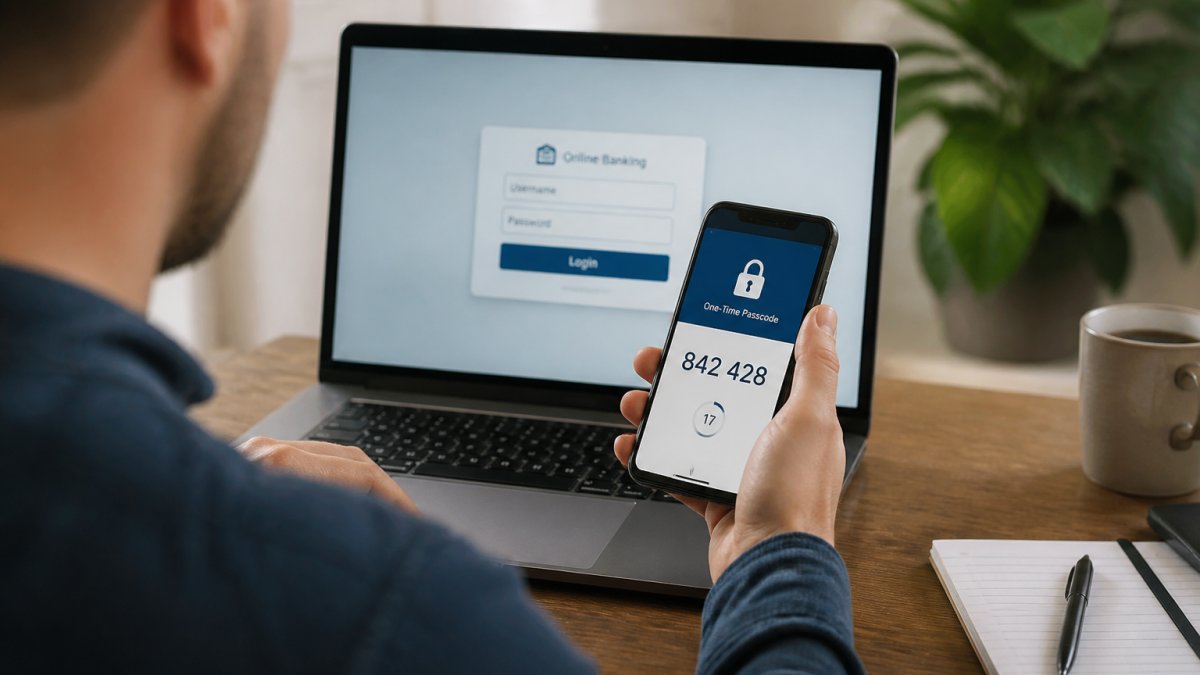
There are three main types of MFA.
SMS text codes send a code to your phone. Better than passwords alone, but hackers can intercept texts or trick your phone company into rerouting them.
Authenticator apps generate codes on your phone that change every 30 seconds.
Biometric authentication uses your fingerprint or face. It's the most secure option because biometrics can't be stolen like a password.
For banking, authenticator apps and biometric authentication are the strongest choices. They're harder for criminals to bypass than SMS codes.
Enabling MFA on your banking accounts
Log into your bank's website or app and find "two-factor authentication" or "multi-factor authentication" in security settings.
Choose your MFA method, authenticator apps if offered, otherwise SMS.
For an authenticator app, scan the QR code your bank displays; the app then generates codes for your account.
Test the setup by entering a code from the app when your bank prompts you.
Save your backup codes in a safe place off your phone, in case you lose it.
Bank Account Security Alerts and Monitoring
How account monitoring detects suspicious activity
Bank account monitoring watches for signs of fraud and alerts you to unusual activity.
It looks for large transfers you didn't make, logins from new devices or locations, unrequested password changes, new payees, and unusual transaction patterns.
When it detects something odd, you get an email, text, or push notification so you can confirm whether it was you.
Most banks offer free monitoring, and third-party services like cybersweep analytics can also monitor your personal information across the internet for signs your banking data has leaked.
Setting up alerts and reviewing transaction logs
Log into your bank's app or website and find the alerts or notifications section, usually under security settings.
Choose which activities trigger alerts, such as:
- Large transfers (set a threshold, like $500)
- Logins from new devices
- Password changes
- New payees
- Unusual spending patterns
Select your alert method, email, text, or push notifications, and choose multiple methods if allowed.
Review your transaction log weekly and report anything you don't recognize to your bank immediately.
Set up login alerts for every account login. An alert you didn't trigger may mean your credentials are compromised.
Encryption and Secure Data Transmission for Online Banking
Understanding HTTPS and SSL certificates
HTTPS encrypts data sent between your computer and the bank's server.
When you visit a secure site, your browser and the server exchange encryption keys, scrambling all data so only they can unscramble it.
SSL certificates prove a website is real. Your browser checks the certificate and warns you if it's fake or missing.
Look for these signs of a secure connection:
- A padlock icon in the address bar
- "https://" at the start of the URL (not "http://")
- A green indicator or checkmark (varies by browser)
Never enter banking credentials without these signs, a missing padlock means the connection isn't encrypted.
When and how to use a VPN for banking
A VPN (virtual private network) encrypts all your internet traffic and routes it through a secure server, hiding your real location and IP address.
VPNs add security on public Wi-Fi, coffee shop, airport, and hotel networks are unsecured, and anyone on the same network can see your traffic.
VPNs aren't necessary for banking at home if your Wi-Fi has a strong password. Your ISP can see you're visiting your bank, but HTTPS encrypts your login credentials.
Use a VPN for banking only if:
- You're on public Wi-Fi (coffee shop, airport, hotel)
- You're traveling internationally
- You want to hide your location from your ISP
- Your home network is shared with people you don't trust
Choose a reputable VPN that doesn't log your activity, and avoid free VPNs that often sell your data to advertisers.
Access Controls, Permissions, and Risk Management
Managing authorized devices and sessions
Your bank likely shows which devices are logged into your account under "device management" or "active sessions."
Check this regularly in your banking app's security settings under "devices," "active sessions," or "connected devices."
Each entry shows device type, location, and last login time. An unrecognized device is a red flag.
Remove unrecognized devices immediately using the "log out" or "remove" button next to each one.
If your bank offers trusted devices, mark only devices you own and control, it skips MFA on future logins from that device.
Reviewing and revoking suspicious access
Review monthly which apps and services can access your banking data.
In your bank's security settings, look for "connected apps," "authorized apps," or "third-party access."
Revoke or disconnect any apps you don't recognize or no longer use.
Budgeting apps like Mint or YNAB request banking data to track spending. Only authorize apps you trust, and check their privacy policy first.
Audit quarterly: review active sessions and connected apps, and remove anything suspicious or outdated.
Reducing Your Exposure: Data Cleanup and Privacy Protection
Why data brokers collect banking-related personal information
Data brokers buy and sell personal information collected from public records, online activity, and data breaches, selling it to marketers, employers, and sometimes criminals.
Banking-related data is valuable: brokers collect your name, address, phone, email, and sometimes financial information, then sell it to lenders, insurers, and marketers.
Criminals buy this data too. With your name, address, and phone number, they can impersonate you, open accounts, or commit fraud in your name.
Sources include public records, social media profiles, retailer or service-provider breaches, and information you shared years ago.
How privacy tools help reduce your digital footprint
Privacy tools for banking users help you take control by requesting removal from data brokers and monitoring for leaked data.
They search data brokers for your information, send removal requests, then monitor for reappearances.
This process helps reduce your exposure.
Services like cybersweep analytics can help identify where your personal information is exposed online.
However, it's important to understand the limits. Some information, like government records, can't be removed.
The best approach combines multiple tools. Use a password manager for strong credentials. Enable MFA on all accounts.
Protecting your banking information requires layers of security. Start with the basics: strong, unique passwords stored in a password manager.
Frequently Asked Questions
What privacy tools are most useful for online banking?
The most useful privacy tools for banking include password managers to store strong, unique credentials; multi-factor authentication to add an extra security layer; account monitoring services that alert you to suspicious activity; and encryption tools like VPNs for secure data transmission. Together, these tools reduce your exposure to fraud and unauthorized access by controlling who can access your accounts and how your financial data travels online.
How can I tell if my banking information has been exposed?
Use password-breach checkers to see if your email or username appears in known data breaches. Most banks also notify customers directly if their systems are compromised. Review your credit reports annually for unfamiliar accounts or inquiries. Set up account alerts through your bank to catch unauthorized transactions early. If you discover your banking password in a breach, change it immediately and monitor your accounts closely for suspicious activity.
Are password managers safe to use with bank accounts?
Yes, reputable password managers use strong encryption to protect your banking credentials. They store passwords in an encrypted vault that only you can unlock with a master password. This is actually safer than reusing weak passwords or writing them down. Choose a password manager with a strong security track record, enable multi-factor authentication on the password manager itself, and use a unique, complex master password. This approach significantly reduces the risk of your banking passwords being compromised.
Should I use a VPN when accessing my bank account?
Using a VPN when banking on public Wi-Fi adds a layer of protection by encrypting your connection and hiding your IP address from the network. However, on your home network or a trusted connection, a VPN is less critical. Choose a reputable VPN provider with strong encryption standards. Be aware that some banks may flag VPN traffic as unusual activity, so contact your bank if you encounter access issues. A VPN complements other security measures but is not a substitute for strong passwords and multi-factor authentication.